Adobe Creative Cloud provides access to various apps like Photoshop, Illustrator, Acrobat, etc. To get started you will need to first request a license.
Please note that your access to Adobe Creative Cloud must be renewed every 120 days.
If your license has expired and you are still an eligible employee, you can also renew your access by repeating the below process.
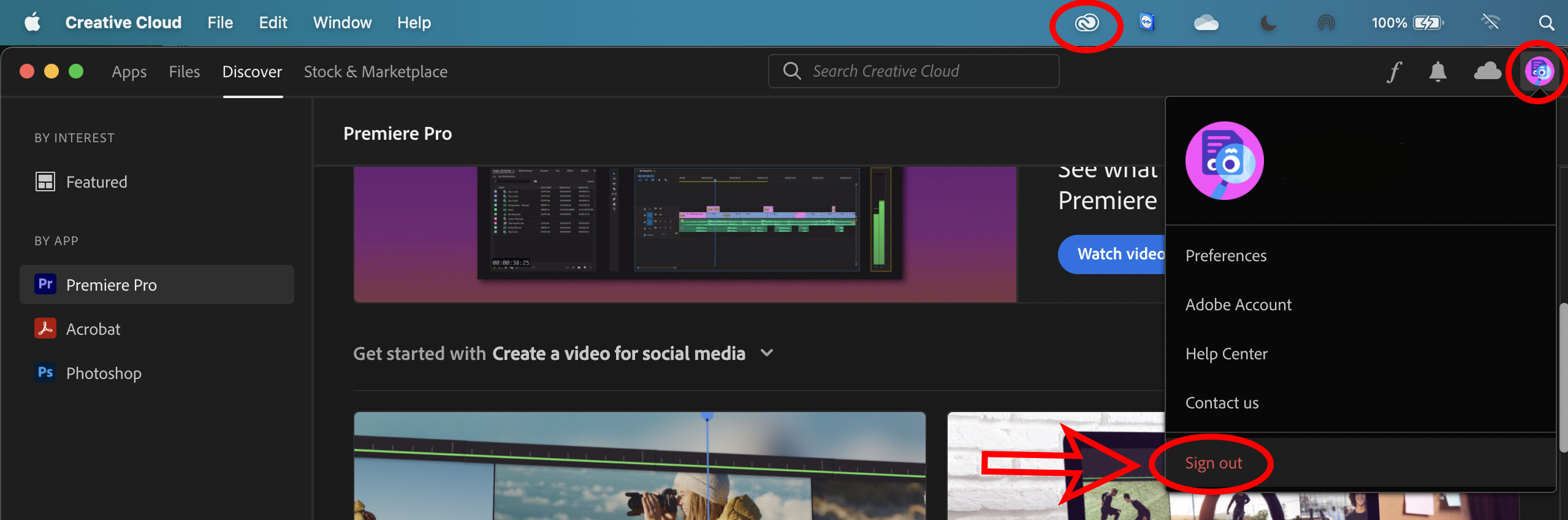 1. Before you begin, if you already have the Creative Cloud application downloaded, sign out of the app.
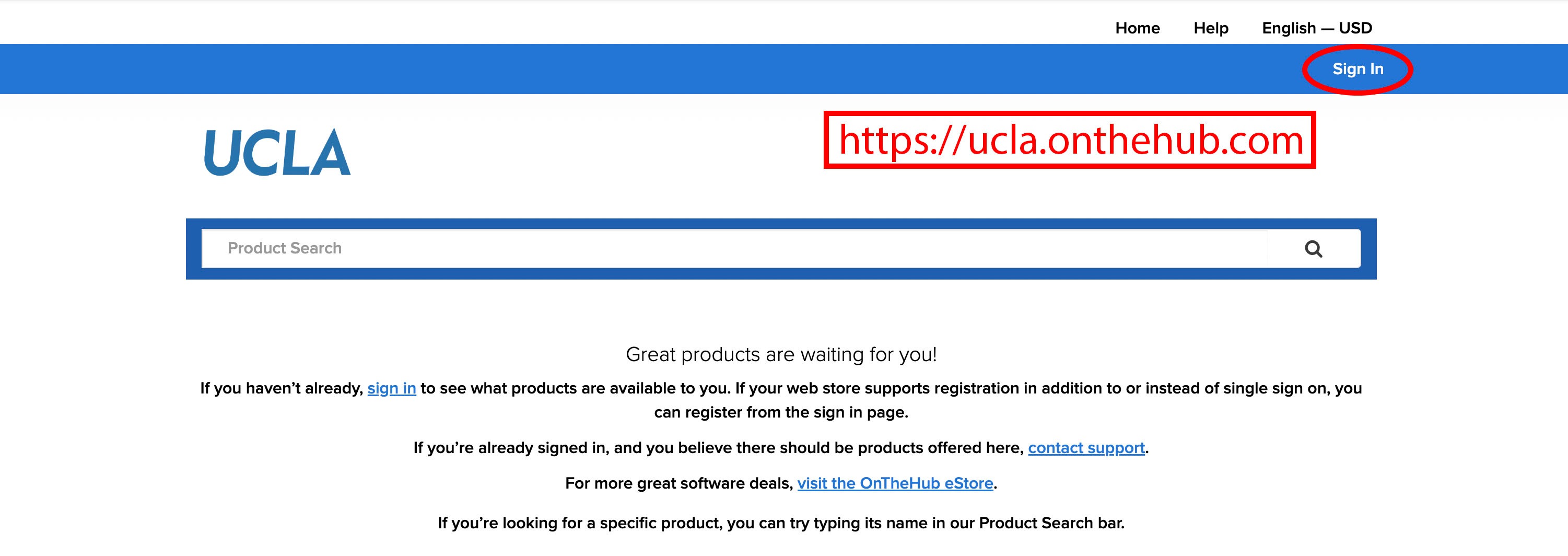
2. Visit  University of California, Los Angeles is OnTheHub and sign in with your UCLA Logon In as well as authorize your multi-factor authorization in Duo.
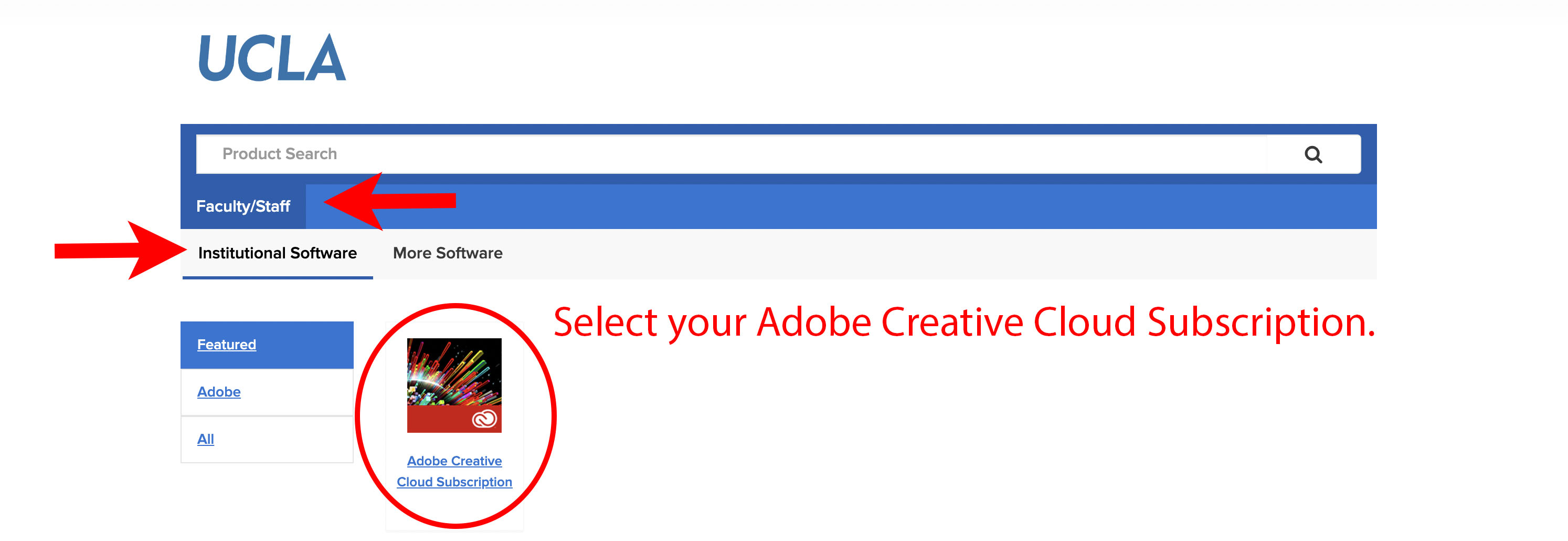
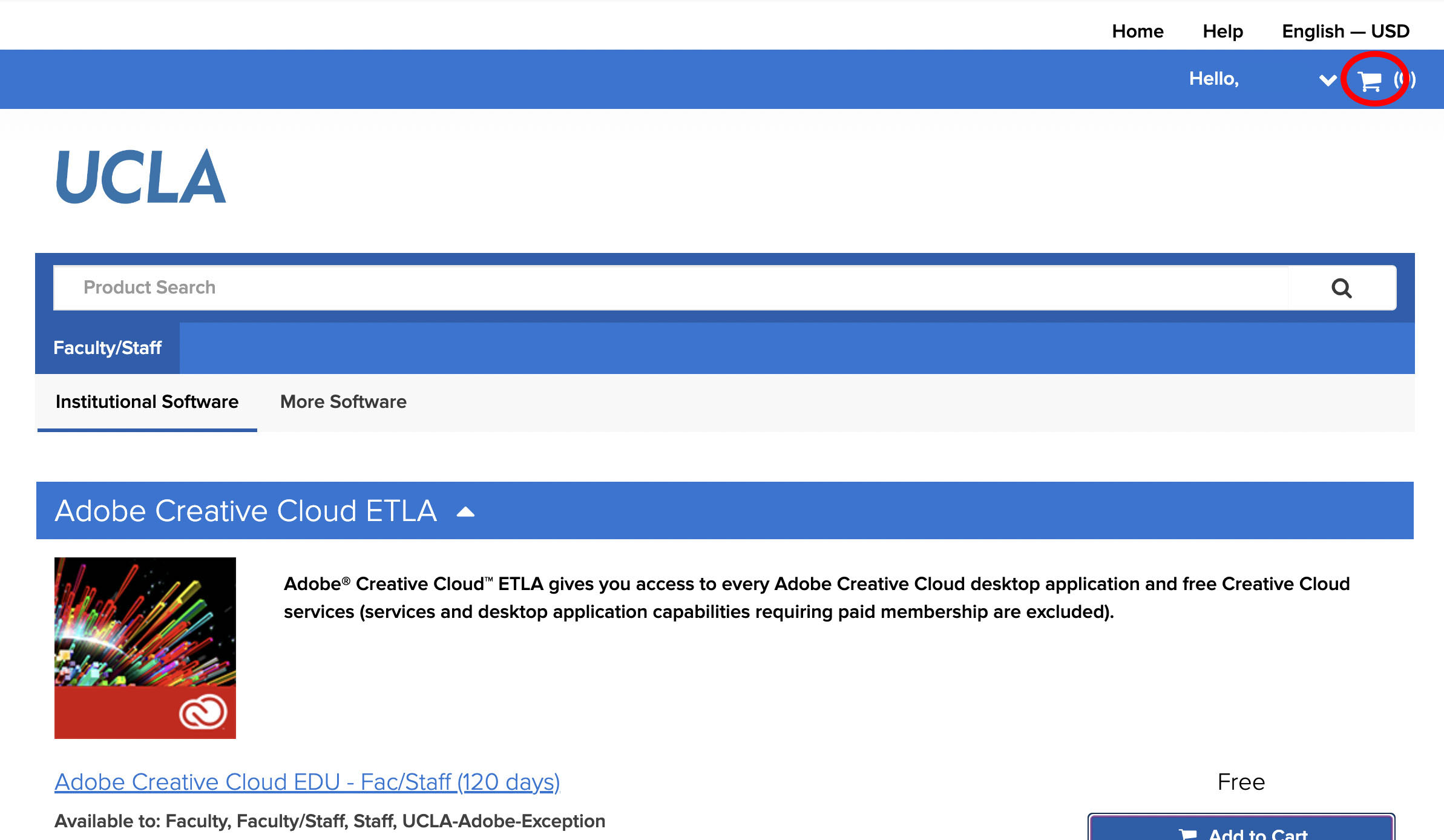
3. Making sure you are in the correct tabs: Faculty/Staff and Institutional Software, select the Adobe Creative Cloud Subscription.
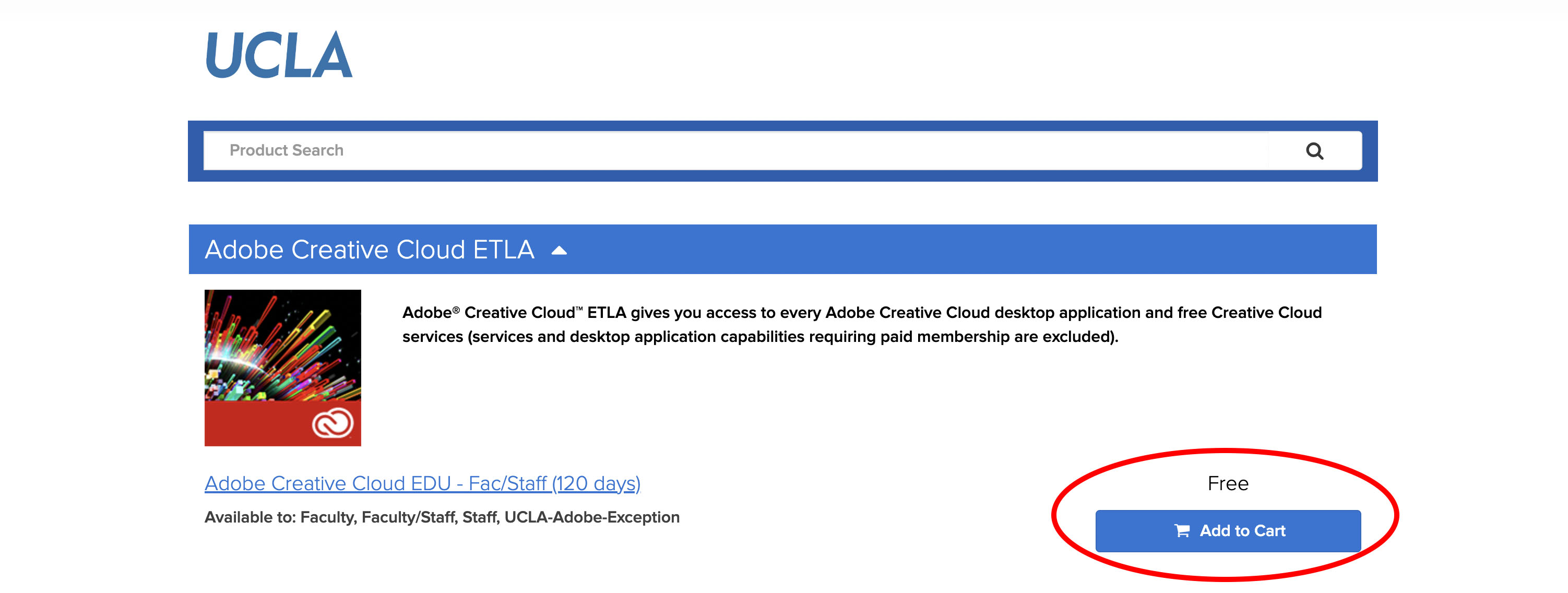
4. The available Adobe Creative Cloud offerings will be displayed. Click on the Add to Cart button next to the appropriate version.
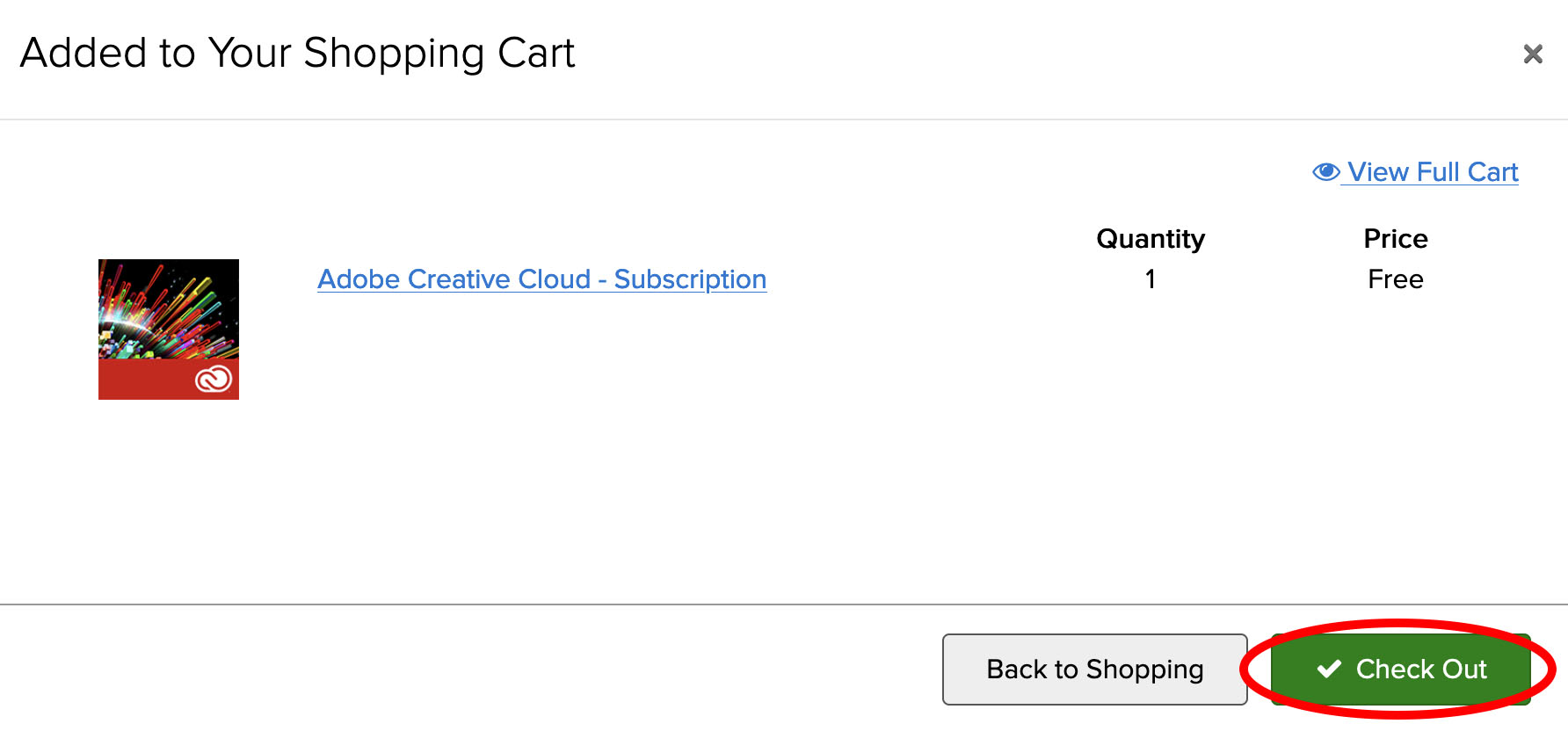
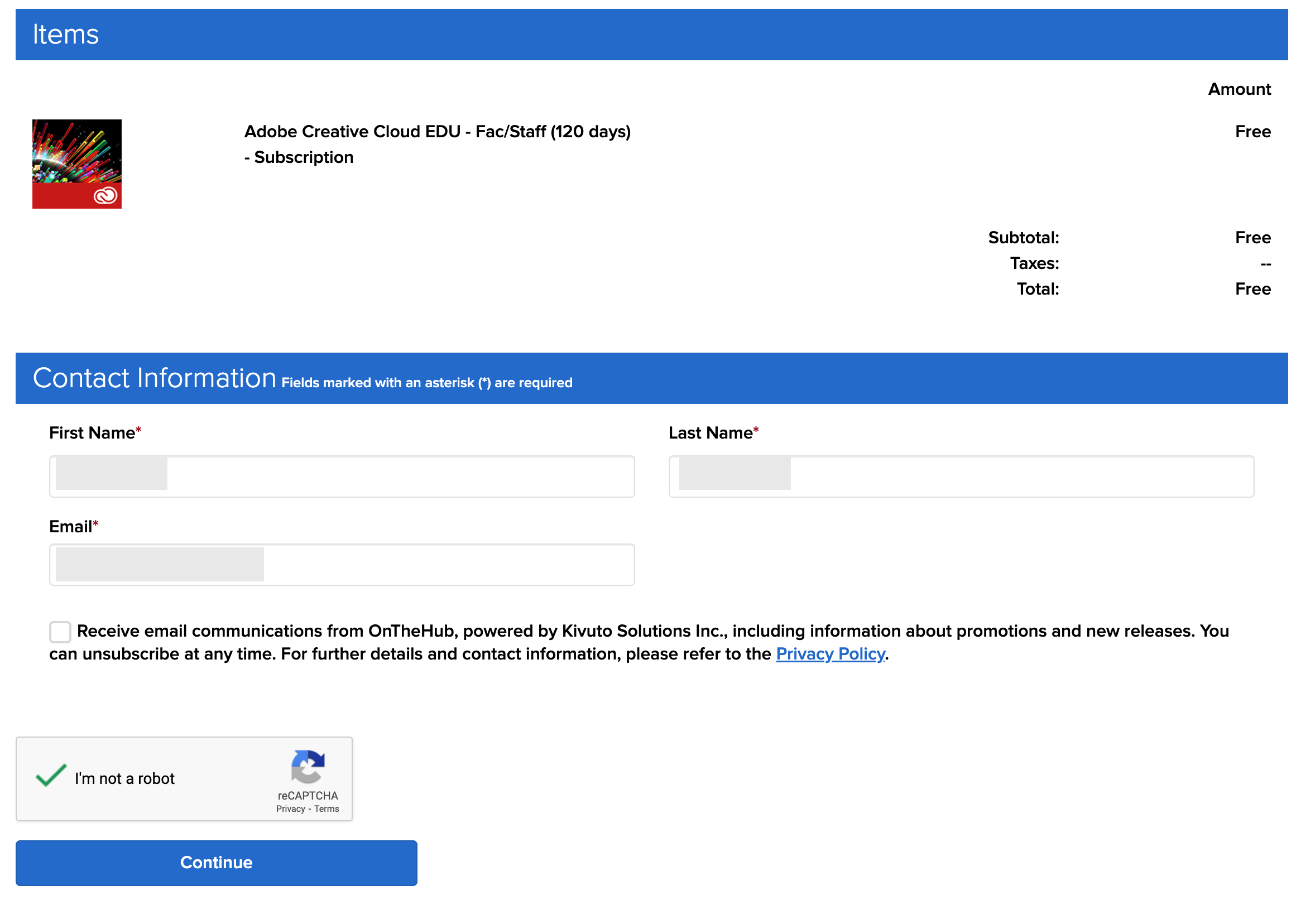
5. Go to the cart and check out.
 6. Your order will process and you will receive a confirmation.
You will receive an confirmation in your inbox.
** If given the option, DO NOT GO TO INSTALL CREATIVE CLOUD IF YOU HAVE PREVIOUSLY USED ADOBE ON YOUR COMPUTER. IT IS ALREADY INSTALLED. **
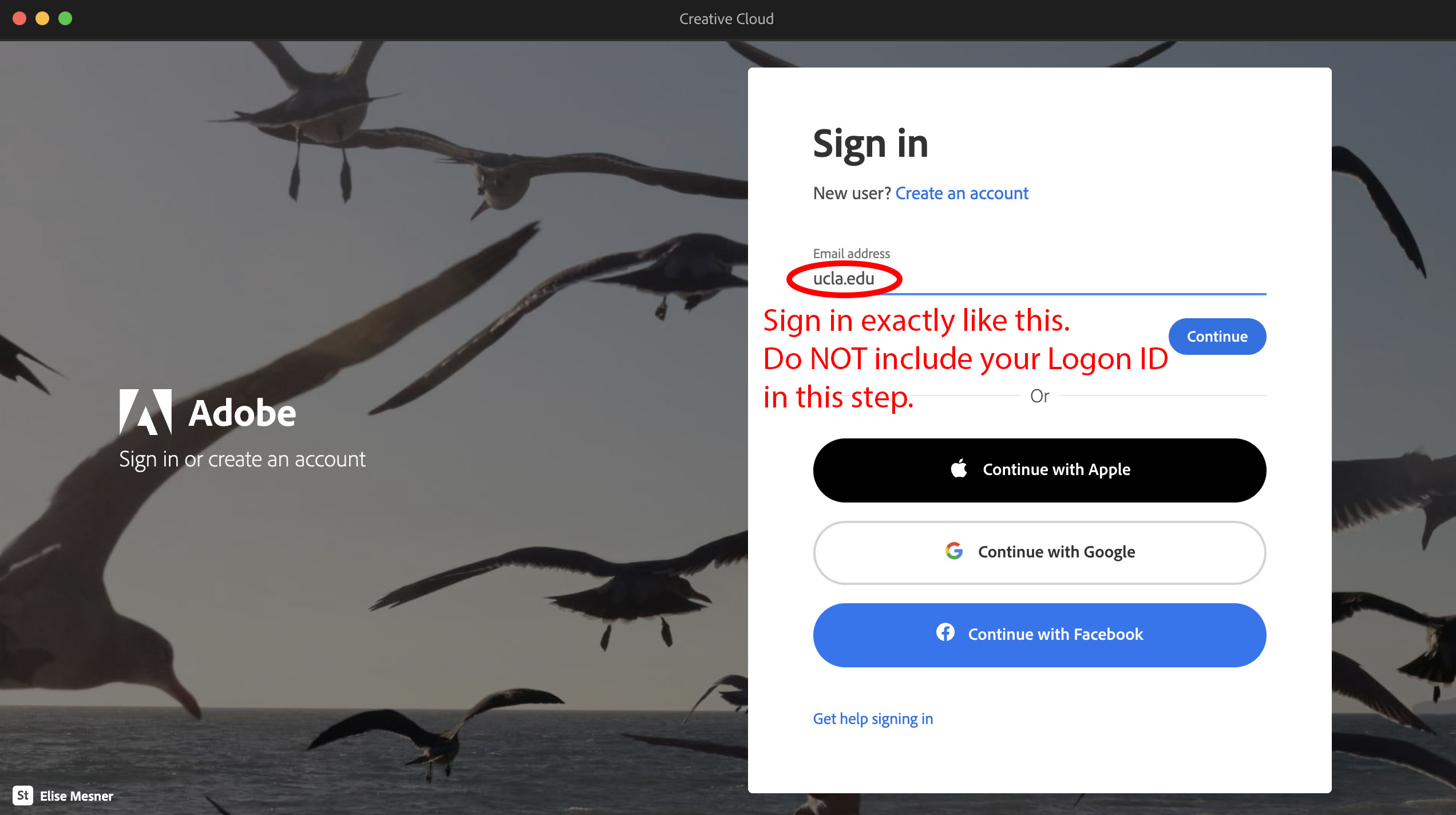
6. You can now log into the Creative Cloud Application. ONLY type in “ ucla.edu ” like the image below. DO NOT use the Continue with Google option or input an email address such as username@g.ucla.edu or @department.ucla.edu.
Click Continue.
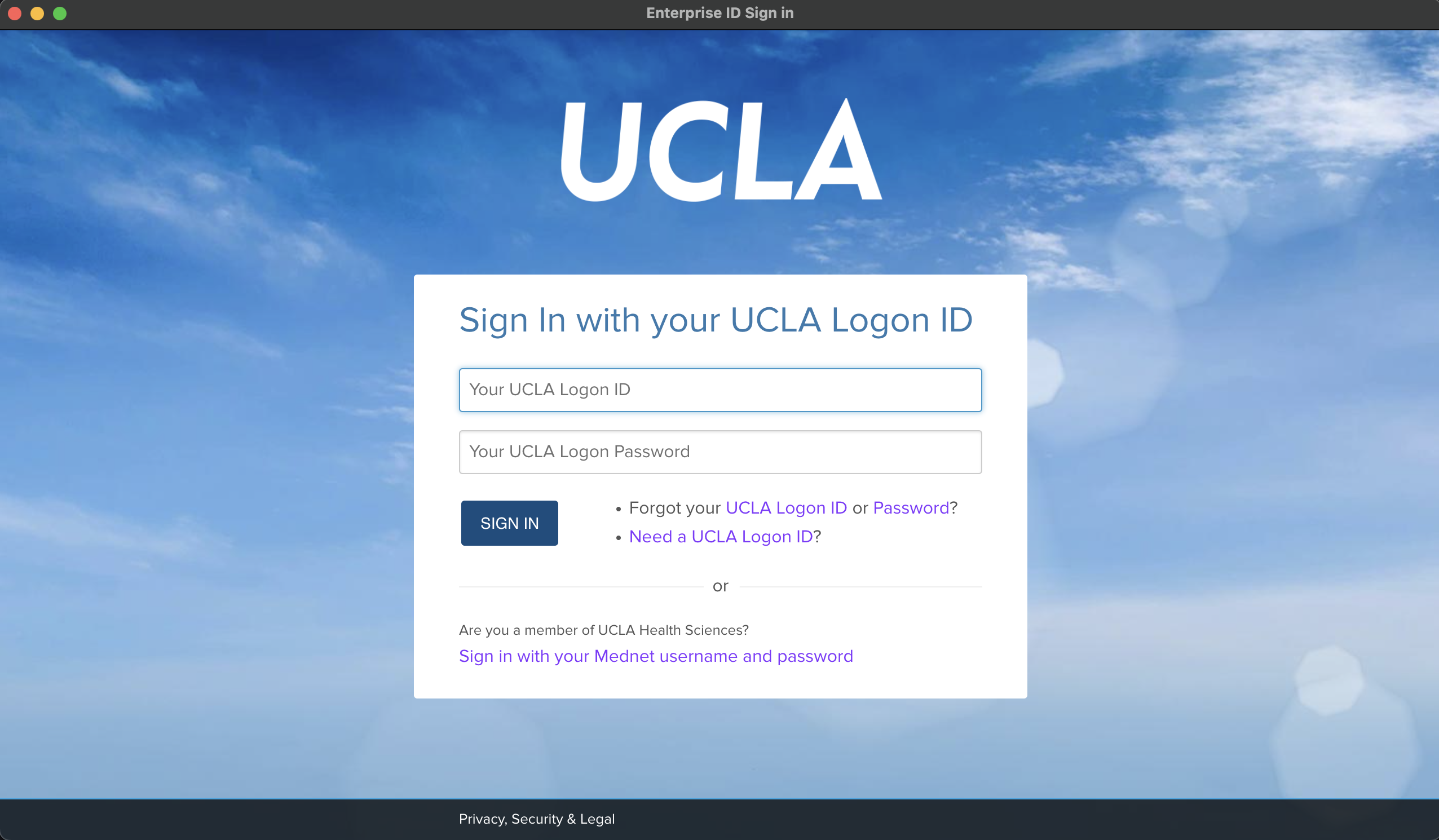
7. Proceed with the UCLA Logon ID sign in window and complete sign in with Duo MFA.
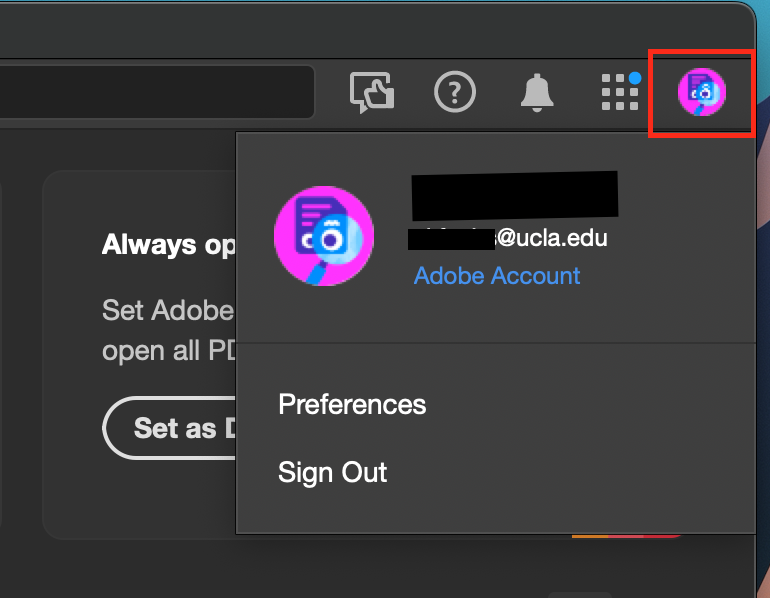
8. You can check if you have logged in correctly by selecting the icon in the upper right of any Adobe application window (ie. Creative Cloud, Acrobat, Photoshop, etc.)
Remember: Your access to Adobe Creative Cloud must be renewed every 120 days. You will get an email regarding a renewal when the 120 day count approaches.
It will look something like this: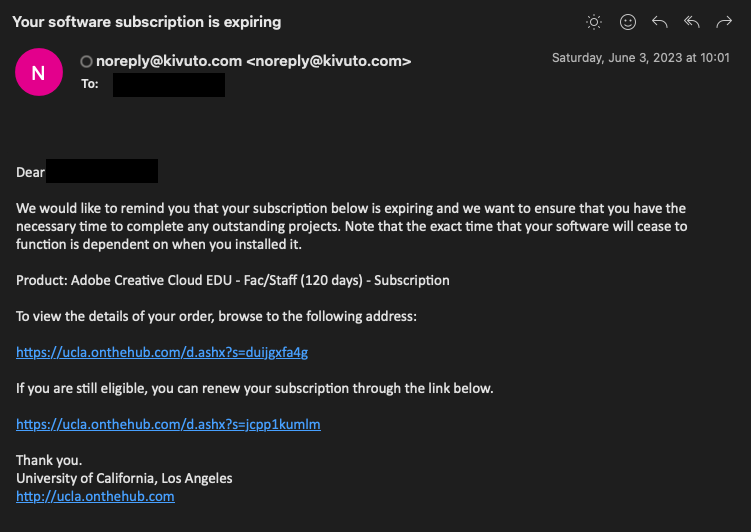
Was this article helpful?
That’s Great!
Thank you for your feedback
Sorry! We couldn't be helpful
Thank you for your feedback
Feedback sent
We appreciate your effort and will try to fix the article