IMPORTANT NOTE:
As of July 1, 2025, accessing UCLA Outlook emails and Office 365 applications now require the installation of Trellix (anti-virus) and Duo Desktop. Duo Desktop is separate to DUO MFA Push on mobile.
About Duo Desktop/Installation Guide (installers at the bottom of the page) : https://dts.ucla.edu/products-services/security/multi-factor-authentication/duo-desktop/duo-desktop-getting-started-guide
About Trellix Anti-virus: https://dts.ucla.edu/products-services/security/trellix
Installer request for non-UCLA computers: https://ucla.service-now.com/support?id=sc_cat_item&sys_id=3eeaac5a1b18d29011fa9608bd4bcbae
**If you are on a department provided computer, please send ARTSIT a ticket for installation assistance.
1. Type in outlook.office.com in your browser's address bar.
2. Type in your single sign on account and add @ucla.edu at the end and click next. Please note, you do not use your full email address on this field. 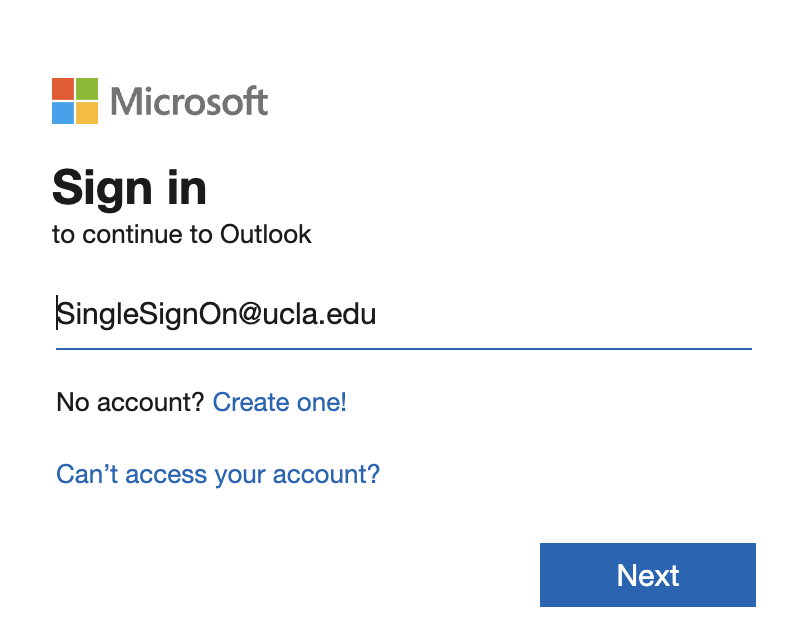
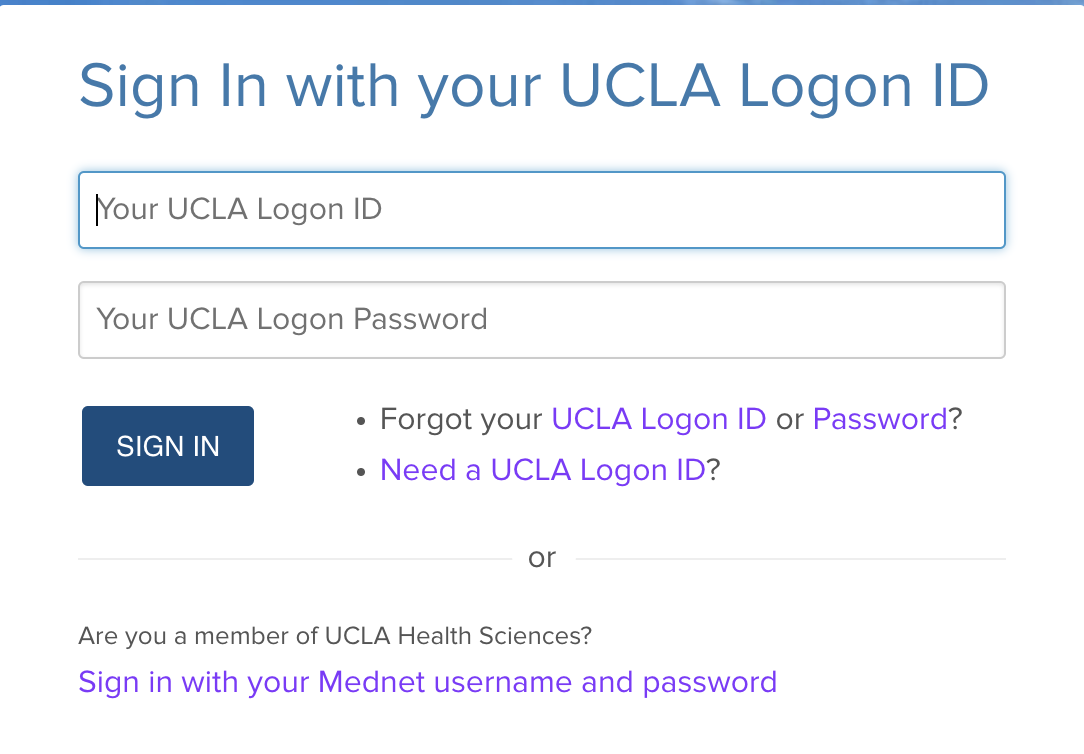
3. You will then be taken to the single sign on page where you enter just your single sign on and password.
4. Check Duo Push window appears, please check your phone or follow the instructions on how you normally access the duo push to login to your account. 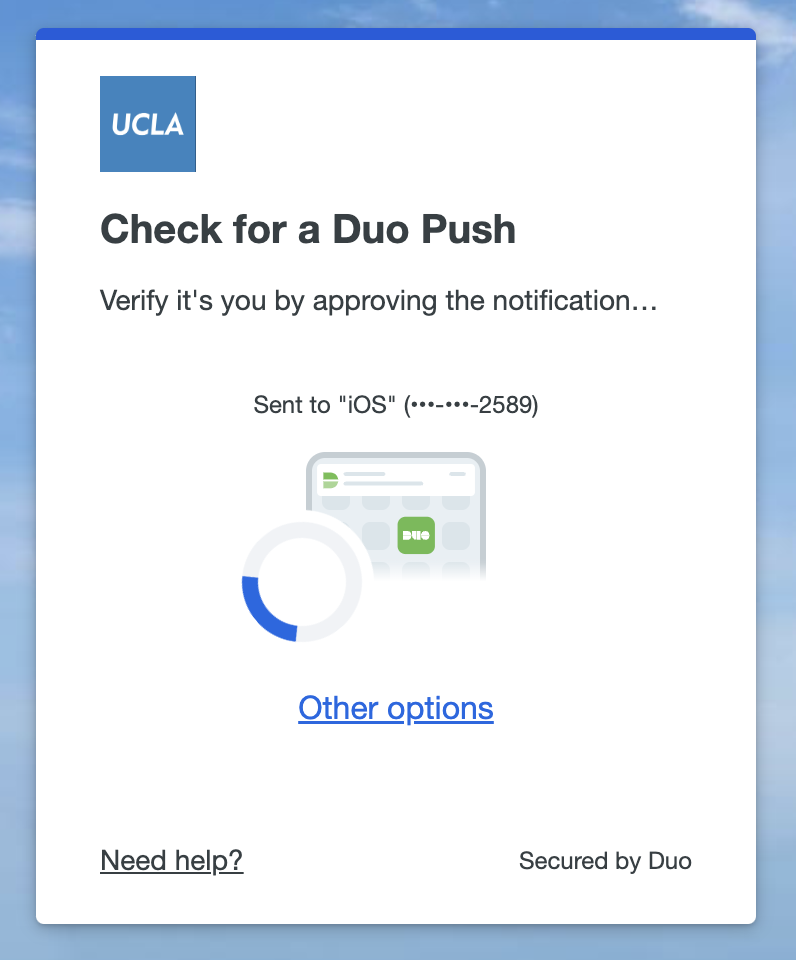
Example: if you have your duo push go to your duo app by default, you will see this and Click Approve.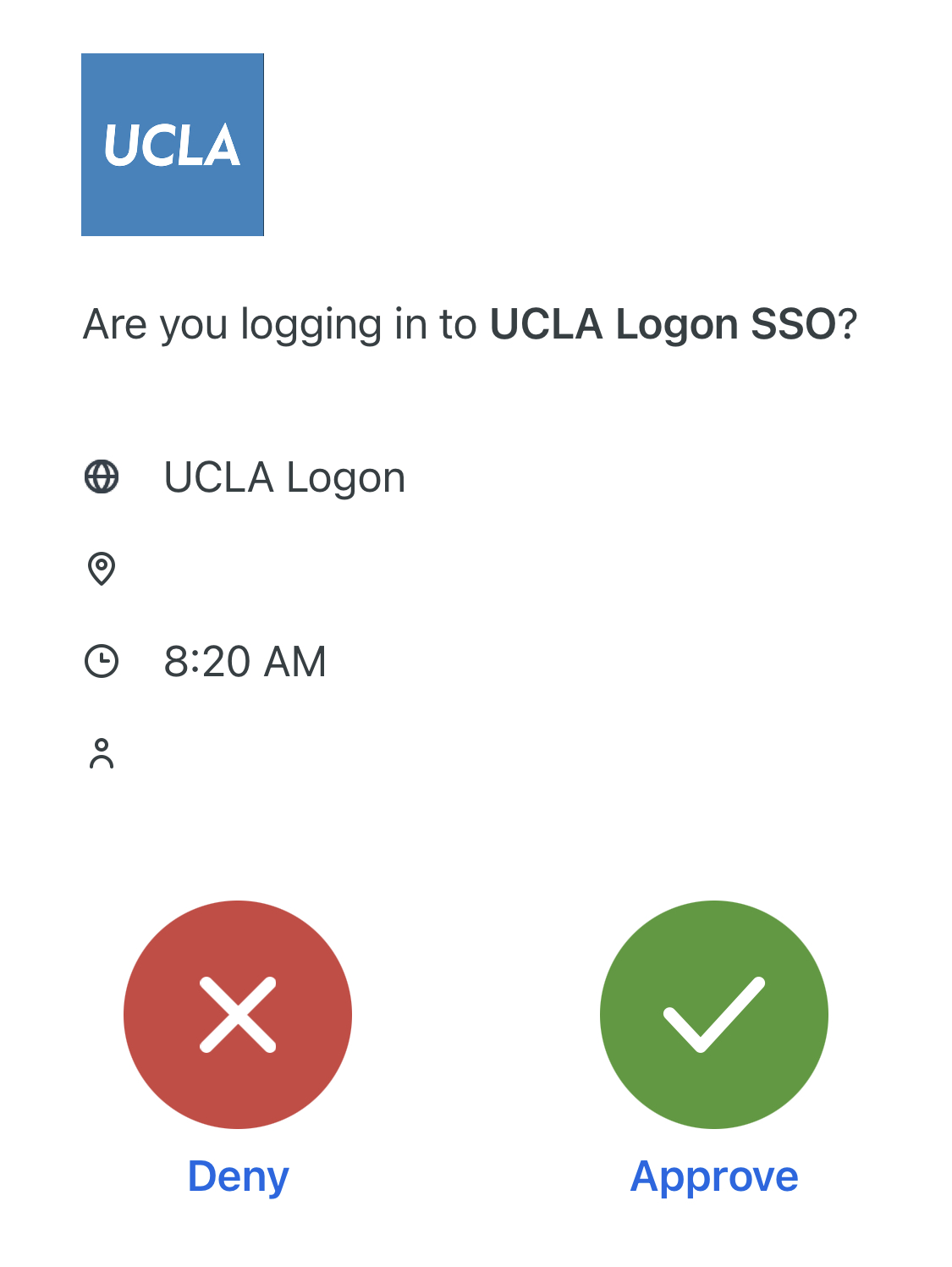 5. Next option will take you to a page if you want to keep you sign in active on your browser. You can choose to keep it active by putting a check on Don't show this again and clicking YES. Or just click NO and you will be asked to login on that browser every time.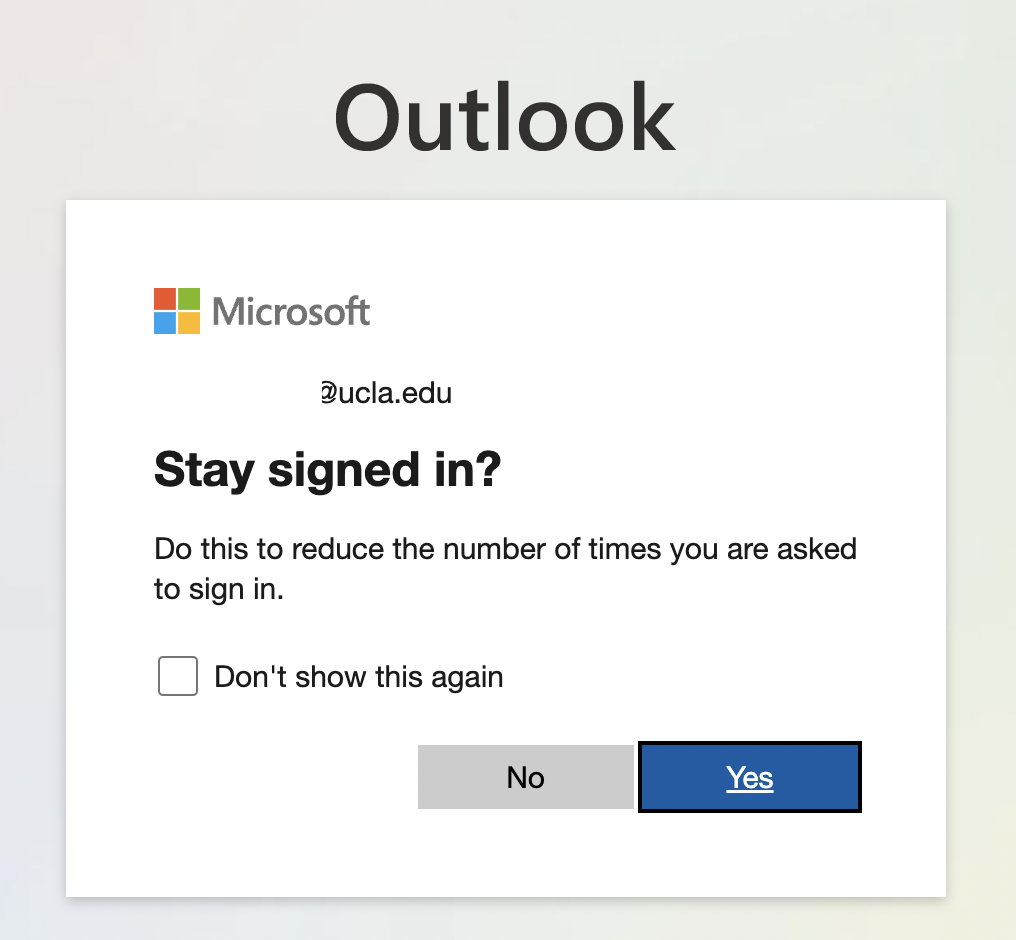
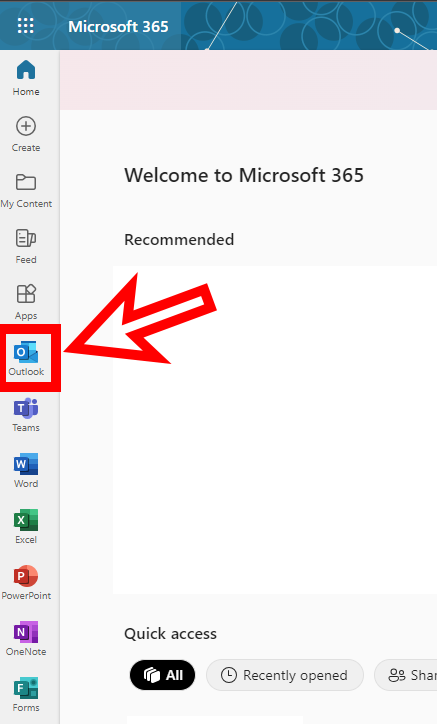
6. You will now be logged in to Outlook Web Access / Webmail.
Was this article helpful?
That’s Great!
Thank you for your feedback
Sorry! We couldn't be helpful
Thank you for your feedback
Feedback sent
We appreciate your effort and will try to fix the article