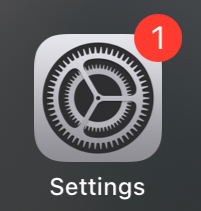
1. Navigate to your Settings app.
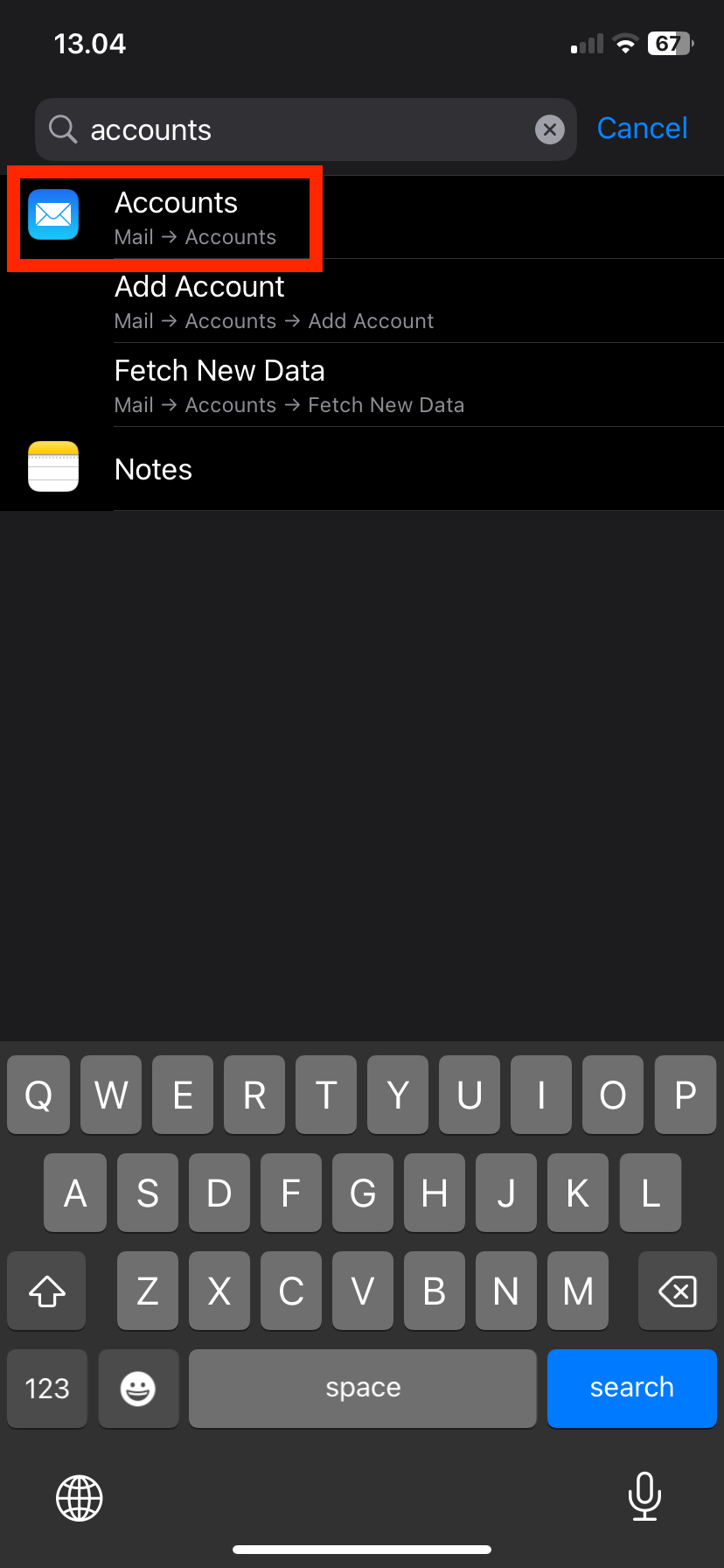
2. Search for "accounts" in the search bar that appears when you swipe up in the home menu.
Click on "Accounts" with the mail icon.
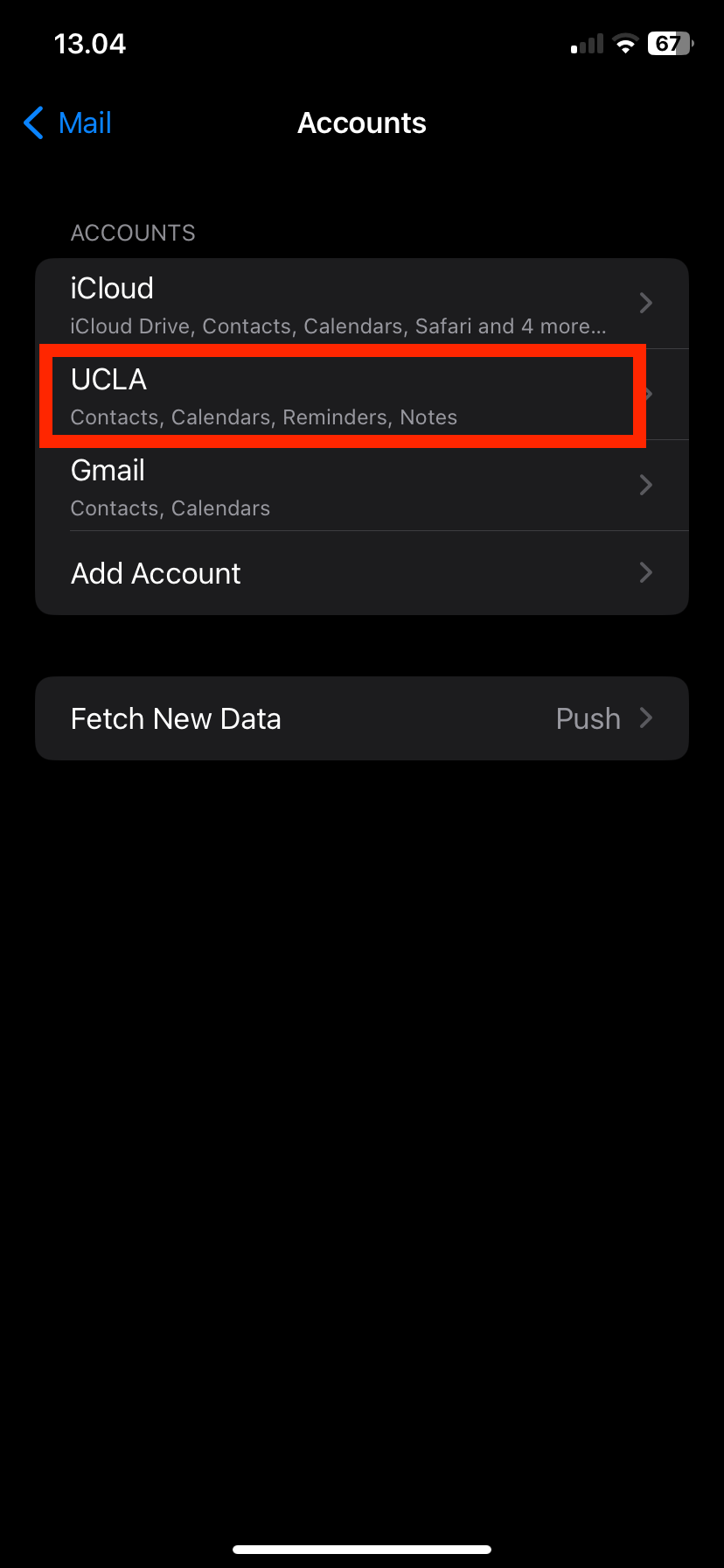
3. Click on the account that is associated with your UCLA email. It is an "Exchange" account.
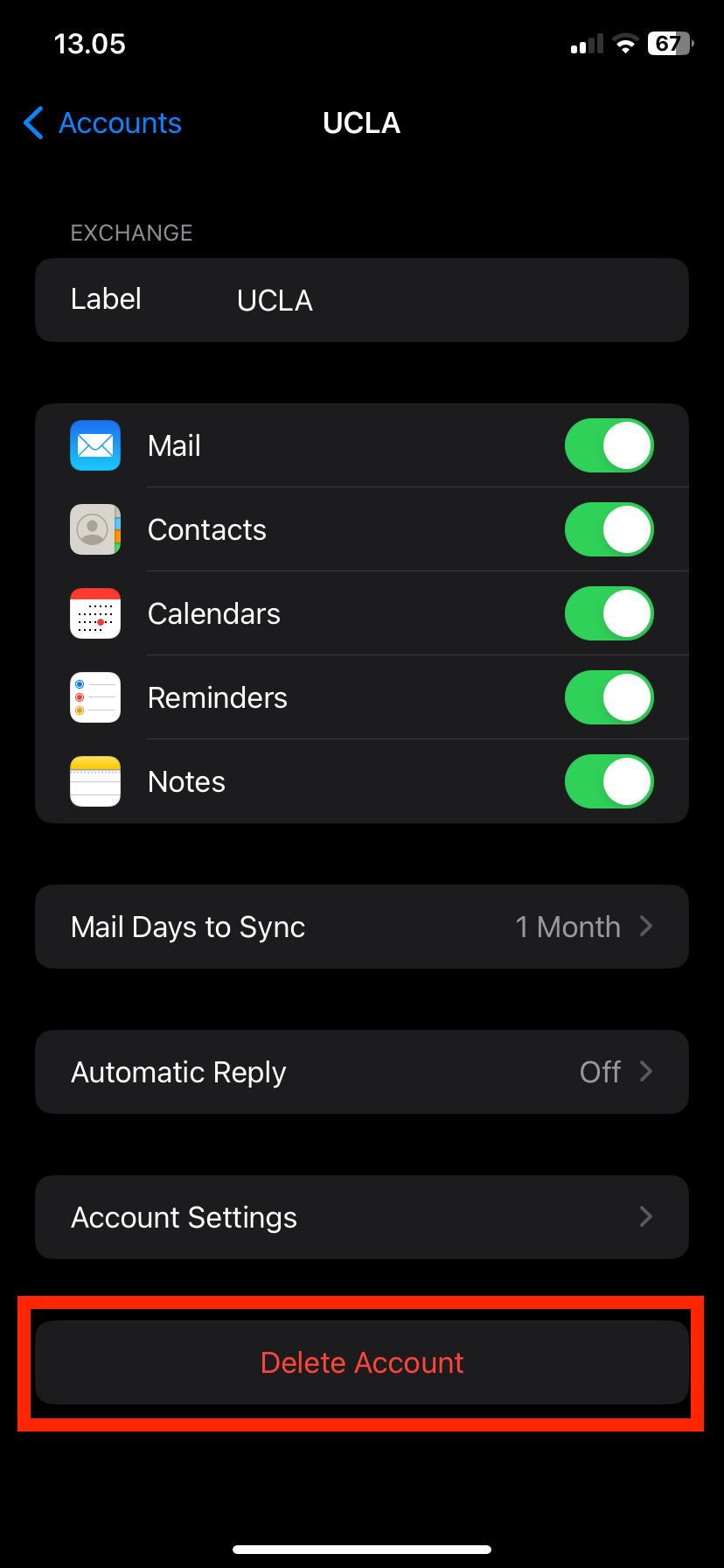
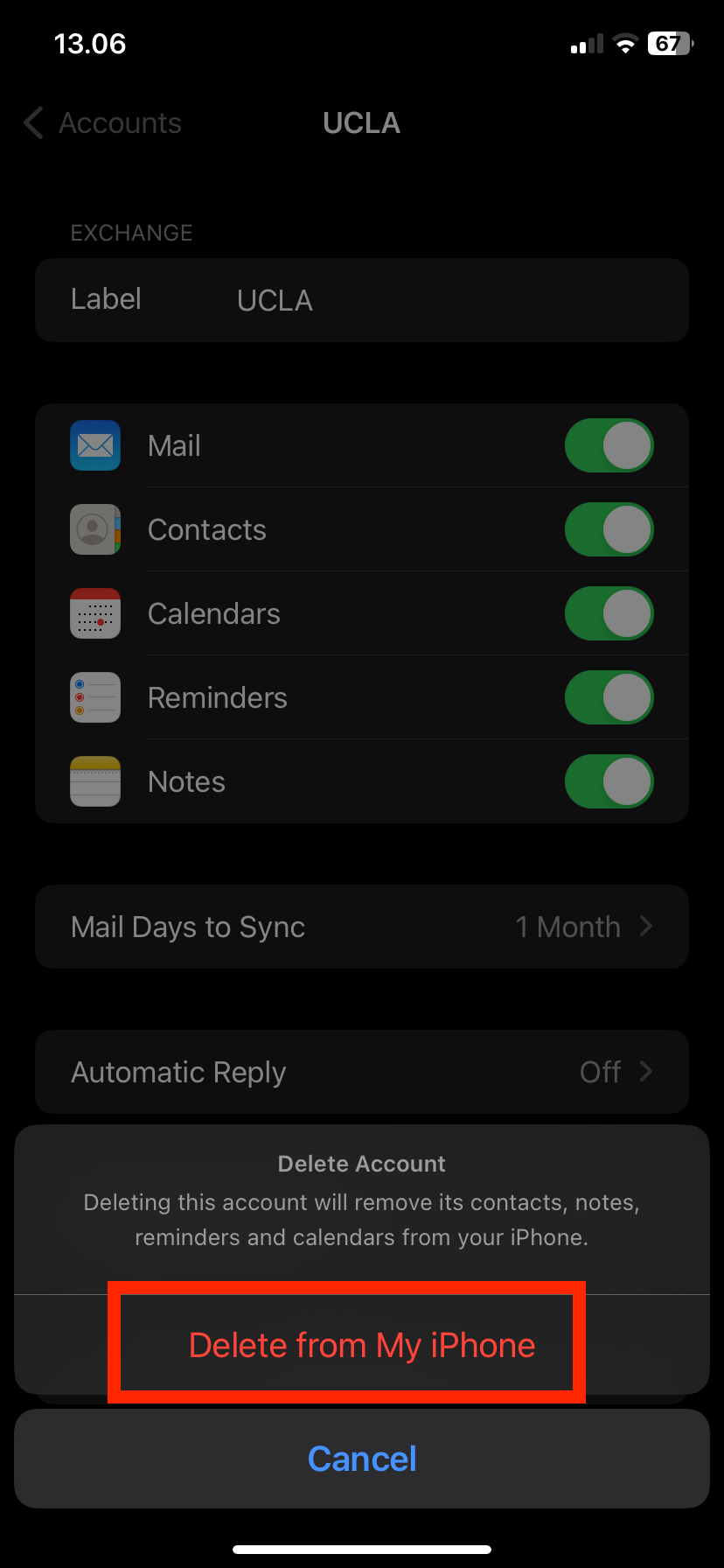
4. Click on "Delete Account" at the bottom on the screen. This will only sign you out on your phone.
5. Click on "Delete from My iPhone." All the data will be removed from your UCLA outlook account from your phone.
Was this article helpful?
That’s Great!
Thank you for your feedback
Sorry! We couldn't be helpful
Thank you for your feedback
Feedback sent
We appreciate your effort and will try to fix the article